Quick start: use your own design reference
Use an existing DESIGN.md, or generate one from a public webpage and bring it into your current project. A design reference complements your feature requirements and visual checks.
Open your existing project
Place DESIGN.md beside the frontend code it describes. Keep a copy before editing. You can use a guide you already have; the worked example below is optional.
Add a Cursor project rule
Create .cursor/rules/design-reference.mdc with the block below. Merge it with your existing rules. For this small rule, alwaysApply includes it on each request; check the active context and ask Cursor to read the referenced file.
---
description: Follow the project design reference
alwaysApply: true
---
Read @DESIGN.md before UI changes. Preserve its documented rules unless the task changes them. Verify the rendered result.
Describe your change
Read DESIGN.md and inspect the existing UI before editing. Add a settings page using the documented design rules. Explain any missing design decisions. Build and check the page on desktop and mobile.
Cursor: Shiftline
Cursor turned the same Atlas project into Shiftline, with a separate Schedule page, day and team filters, and an Add shift form that saves in this browser. It read only part of the reference DESIGN.md during this run.
Cursor CLI 2026.09.02-c22c1a3 ·
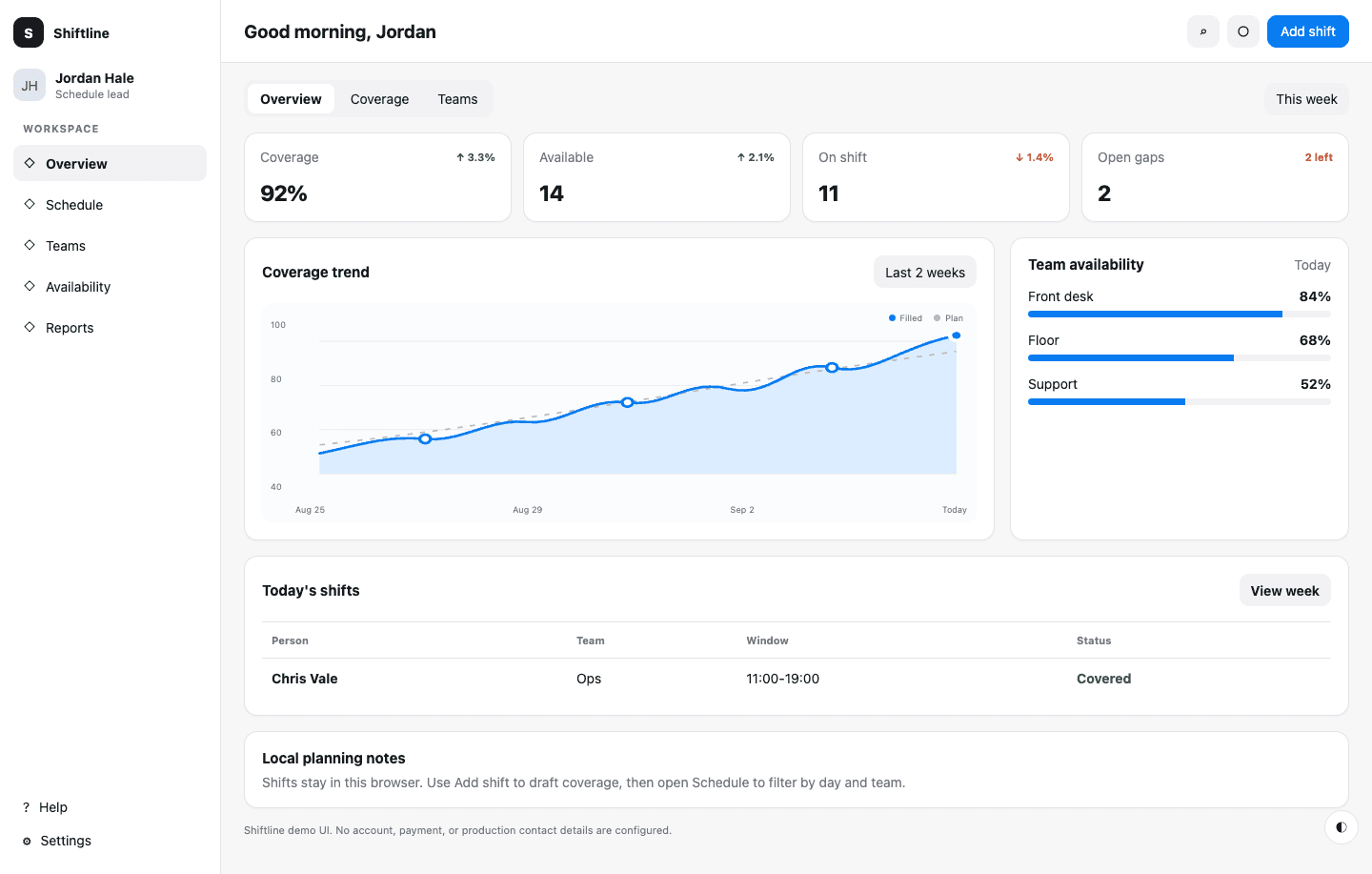
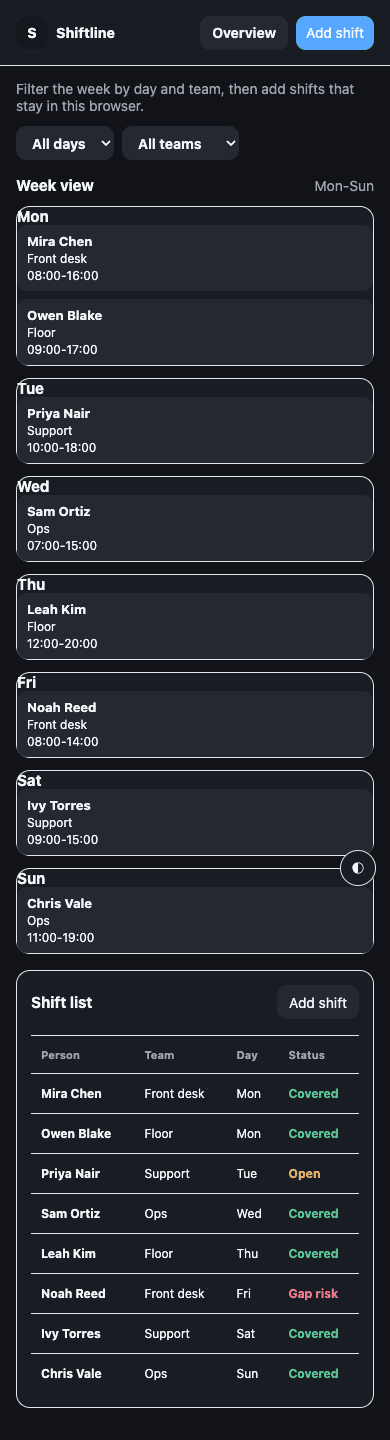
Optional worked example: dashboard to scheduling app
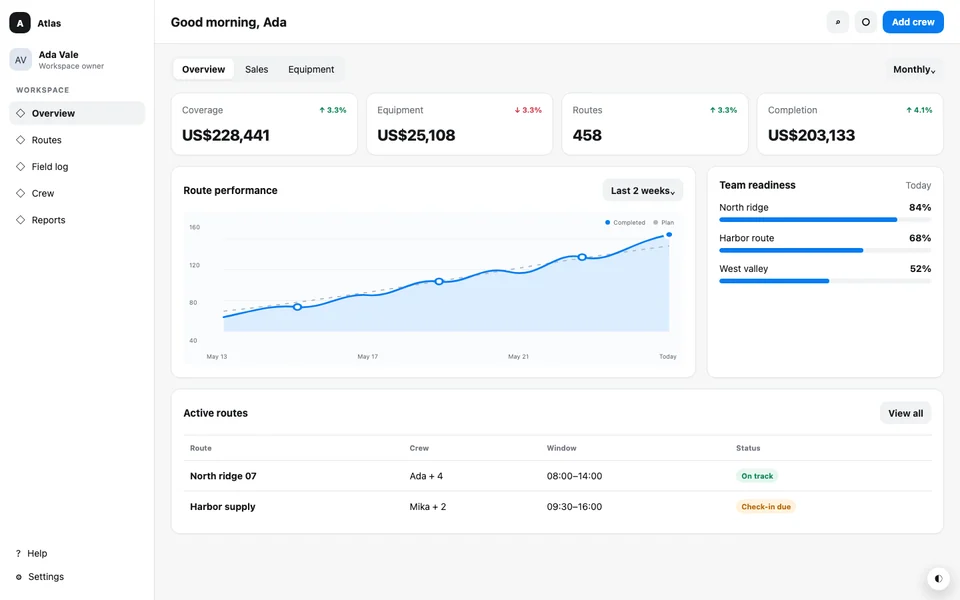
A dense dispatch dashboard with status cards, an operational table, restrained color roles, and compact responsive navigation.
Steps
Start with one working download
Open Atlas Dispatch in Gallery and compare its source, clone, and DESIGN.md. Create your own clone of that public source, download the starter project, and extract it into a new folder. Use Node.js 24 to install and preview the unmodified files before asking the tool to make changes.
Keep the captured reference
Copy DESIGN.md to REFERENCE_DESIGN.md before the first edit. Keep that copy unchanged. The final DESIGN.md should describe the new site, while the reference lets you check which captured rules were kept.
Open the folder in Cursor
Open the extracted project, then create a project rule in .cursor/rules/design-reference.mdc. Set it to always apply for this small example and reference REFERENCE_DESIGN.md. In the Agent conversation, check that the rule is included and ask the agent to read the referenced file.
Send the scheduling brief
Paste the brief below into Cursor Agent. Let it inspect the source files before editing. If it proposes replacing the project setup, ask which requirement needs that change; the downloaded project should already run.
Run the result and test the change
Run the build and preview again. Add a shift, change both filters, and use the keyboard to reach and close controls. Check 390px, 768px, and 1440px widths. If the input has working themes, switch them and reload. Compare the preserved reference with the download and read the final DESIGN.md against the actual page.
Files and commands
.cursor/rules/design-reference.mdc
---
description: Preserve the captured design when editing Shiftline
alwaysApply: true
---
Read @REFERENCE_DESIGN.md before UI work. Keep that reference unchanged. Update DESIGN.md for the final site. Build and test the affected page after editing.
The same project brief
Build Shiftline, a weekly scheduling dashboard for teams of 8–20 people. Rebrand the existing Atlas Dispatch dashboard with team availability and coverage summaries, and add a separate Schedule page linked from the navigation with a weekly shift view. The primary action is Add shift: let people add a shift locally and filter by day and team. Keep the captured layout density, typography, spacing, table behavior, and any working themes. Do not add a backend or copy claims from the source. Preserve the captured DESIGN.md byte for byte as REFERENCE_DESIGN.md, then update DESIGN.md to describe Shiftline. Rebuild the project and verify both pages, keyboard operation, no horizontal page overflow at 390px, 768px, and 1440px, and any theme switch after reload.Run the downloaded project
npm ci
npm run build
npm run preview
If Cursor ignores the reference
Check the project folder and active rule before repeating the prompt. A rule scoped to other files will not help the page you are editing. Ask Cursor to identify the type and spacing values it is using, then compare them with REFERENCE_DESIGN.md.
If the preview is stale, rebuild from the source and reopen the preview. Fix a missing import, asset, or overflow in the code; do not accept a screenshot-only correction.
Official tool documentation
Bring the reference into your project
Start with a public webpage, get its frontend project and design guide, then continue with your own requirements.
Generate a design reference